

Field



CRM Integration
HubSpot CRM Integration
Connect HubSpot with No2Bounce in minutes to validate email
addresses, improve CRM quality, and automatically sync verification
results back into your contact records.


On this page
Overview
Prerequisites
Connect HubSpot
Sign In
Grant Permissions
Import Contacts
Choose Columns
Validate Emails
Review Results
Exported Fields
FAQs

Support
Overview
A native way to keep HubSpot clean
The HubSpot integration lets you validate any contact list stored in HubSpot without exporting CSVs.
No2Bounce checks deliverability, catch-all risk, and mailbox existence, then writes the results back to
each contact record — so your CRM stays trustworthy in one place.
2-minute setup
OAuth connect, no code.
Automatic sync
Results written back to contacts.
Bulk friendly
Static lists, smart lists, or all.
Prerequisites
What you need before you start
Make sure the account performing the connection has the right level of access in both HubSpot and
No2Bounce so the integration can read contacts and write validation results.
Step 1
Connect HubSpot
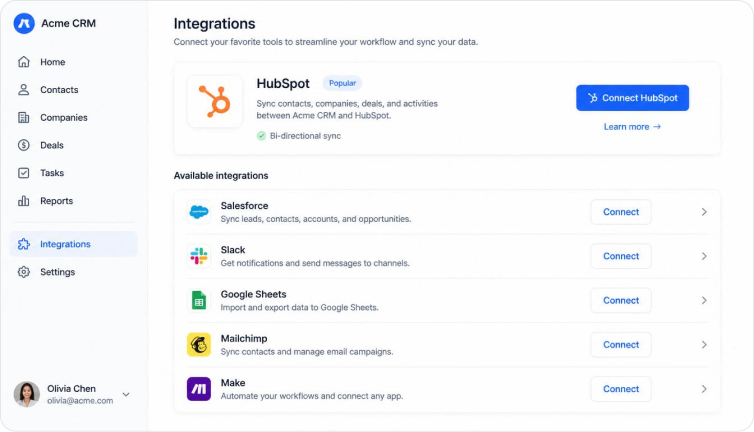
From your No2Bounce dashboard, open Integrations → CRM and choose HubSpot from the list. Click
Connect HubSpot to start the secure OAuth handshake — no technical setup required.
Step 2
Sign in to HubSpot
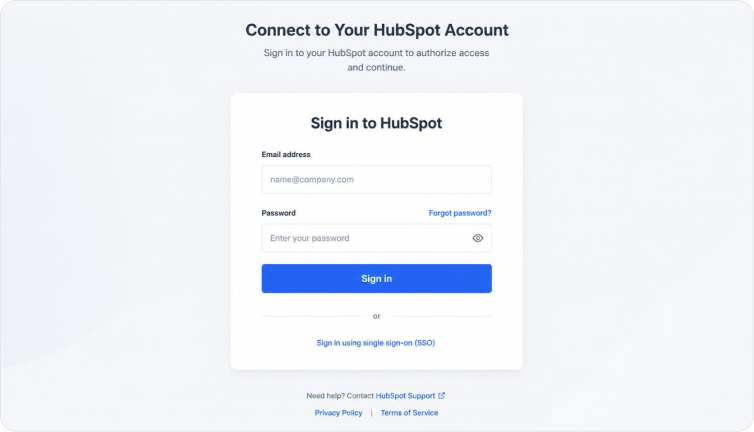
You will be redirected to HubSpot's secure login page. Enter your credentials and complete any two-
factor authentication step required by your account. No2Bounce never sees or stores your HubSpot
password.
Step 3
Grant Permissions
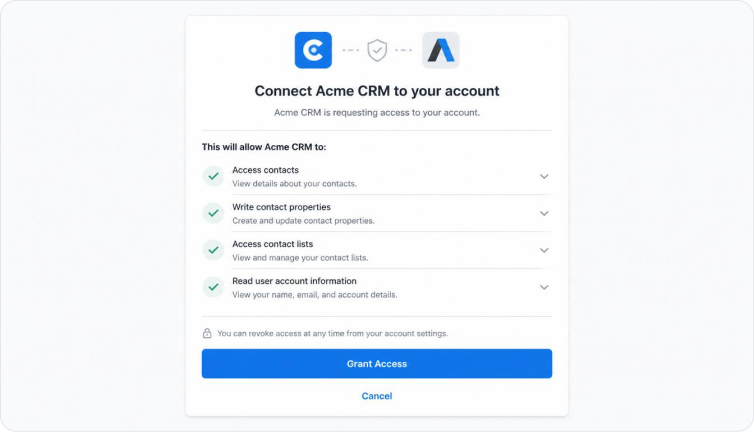
Review the OAuth scopes requested by No2Bounce. We only request the permissions required to read
contacts and write validation results back to HubSpot. You can revoke access at any time from your
HubSpot account settings.
Step 4
Import Contacts
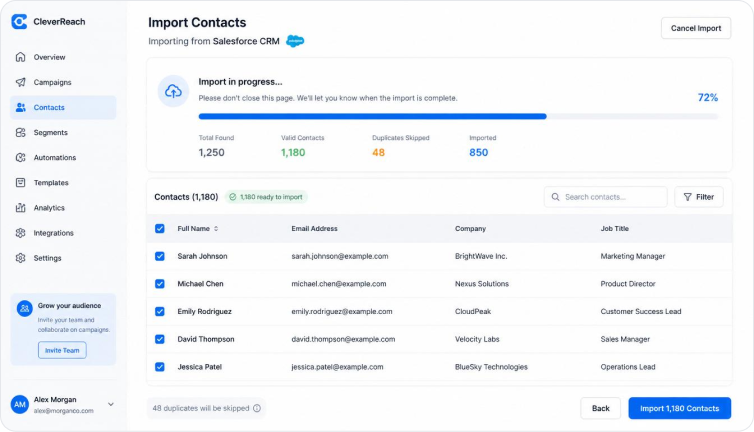
Choose the HubSpot contact list you want to validate. No2Bounce pulls the selected list into your
dashboard while preserving all associated contact data. Static lists, smart lists, and full contact syncs
are supported.
Step 5
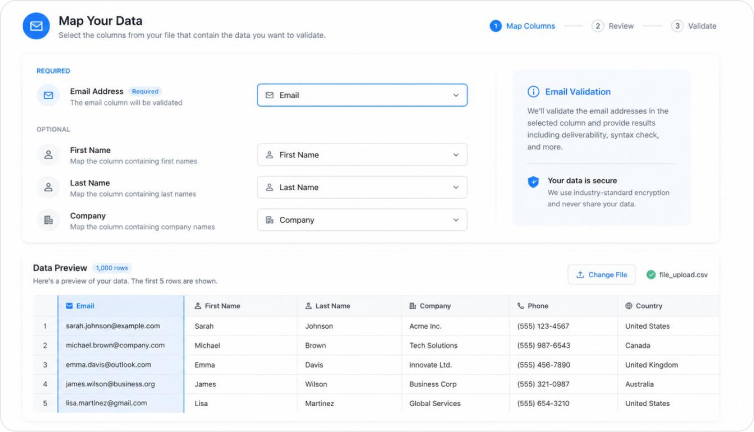
Choose Columns
Map the email column from your HubSpot data before running validation. Include optional columns like
first name, last name, or company so your results stay aligned with your CRM records.
Step 6
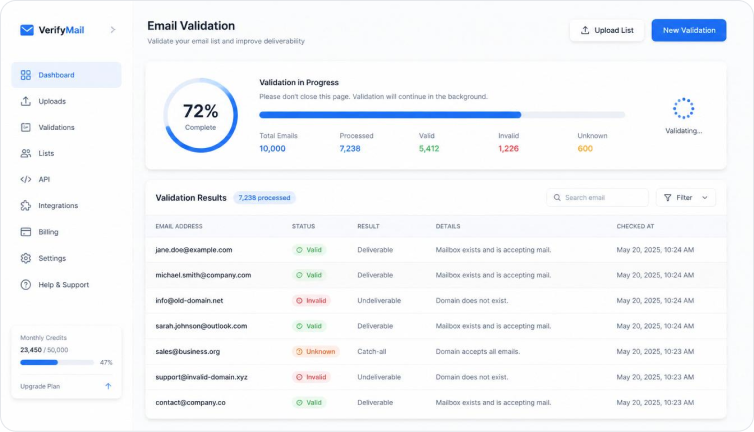
Validate Emails
Start validation from the dashboard. No2Bounce checks each email for syntax, domain validity, mailbox
existence, and catch-all risk in real time, with a live progress bar for status.
Step 7
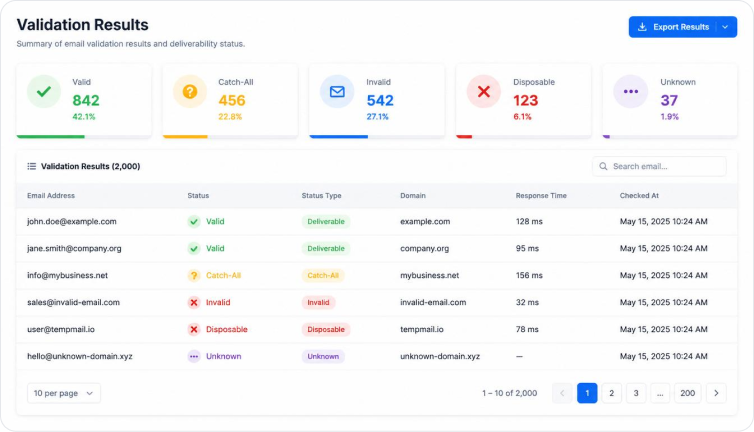
Review Results
Open the validation results dashboard to see a complete breakdown of deliverable, invalid, catch-all,
and disposable addresses. Results can be exported to CSV or synced back to HubSpot automatically.
Reference
Exported Fields
When validation completes, No2Bounce writes the following fields back to your HubSpot contacts. Map
these during setup to keep your CRM data in sync.
Description
Example
N2B_Status
Final validation status of the email address.
valid
N2B_Score
Risk score from 0 to 100.
85
N2B_SubStatus
Detailed sub-status code for deeper insight.
mailbox_not_found
Validation Timestamp
ISO timestamp of the most recent validation.
2024-01-15T09:30:00Z
Status Color
Color indicator used for quick visual scanning.
green
FAQs
Frequently Asked Questions
How long does setup take?

Does it require coding?
Can I disconnect anytime?
Does validation consume credits?
Can I validate contacts in bulk?


